Write data to Sage 50 Accounts (UK & Ireland)
Learn how to write data with our Sage 50 Accounts (UK & Ireland) connector and view FAQs.
To write data to Sage 50 Accounts (UK & Ireland), Codat strongly recommends that your client creates a second user in Sage for the companyCompany In Codat, a company represents your customer's business entity. Companies can have multiple connections to different data sources. file that you are writing to. See Setting up Sage 50 Accounts and the Sage 50 Accounts Connector to enable writing data (below) for instructions.
If you don't create a second user, both the Sage 50 Accounts application and the Codat APIAPI A set of rules and protocols that allows different software applications to communicate with each other. Codat provides APIs for accessing financial data from accounting, banking, and commerce platforms. will try to use the same credentials at the same time. Given that Sage 50 Accounts is open, no data will be written.
Creating a second user that's not used for accessing the Sage 50 Accounts application avoids the possibility of data failing to write because the Sage 50 Accounts application is open and using the same credentials as the connector. Note: this issue does not affect reading data.
Setting up Sage 50 Accounts and the Sage 50 Accounts Connector to enable writing data
Your client should create a new user in Sage 50 Accounts that will be used by Codat's Sage 50 Accounts Connector. We advise your client to include your companyCompany In Codat, a company represents your customer's business entity. Companies can have multiple connections to different data sources. name in the new user's username to highlight the origin of written data to the accountant using Sage 50.
To create a new user and username in Sage 50:
-
Select Settings > User Management > Users.
-
Click New to open the create new user window.
-
Set the user type to Administrator.
-
Enter a username and password for the new user.
-
The "Remote Data Access" step isn't necessary for writing data, so click Continue to skip it.
-
Click Save
-
Download the Sage 50 Accounts Connector and enter the license key to set up the connector. These steps and the preceding steps are the same as those outlined in Install the Sage 50 Accounts Connector.
Note: In the Enter their Sage 50 Accounts credentials step, your client should enter the credentials of the specially created user for the Sage 50 Accounts Connector and NOT the login that they use to open and use the Sage 50 Accounts application on a daily basis.
You're now ready to write data to Sage 50.
Writing data to Sage 50 Accounts with an existing linked companyCompany In Codat, a company represents your customer's business entity. Companies can have multiple connections to different data sources.
If a companyCompany In Codat, a company represents your customer's business entity. Companies can have multiple connections to different data sources. has an existing Sage 50 Accounts Connector which has been reading data from their Sage 50 Accounts companyCompany In Codat, a company represents your customer's business entity. Companies can have multiple connections to different data sources. file, and writing data to their companyCompany In Codat, a company represents your customer's business entity. Companies can have multiple connections to different data sources. file is now required, they should complete these steps.
Prerequisites
Ensure that your client has created a new user (as described above) for their Sage 50 Accounts companyCompany In Codat, a company represents your customer's business entity. Companies can have multiple connections to different data sources. file. This is to be used exclusively for the connector.
-
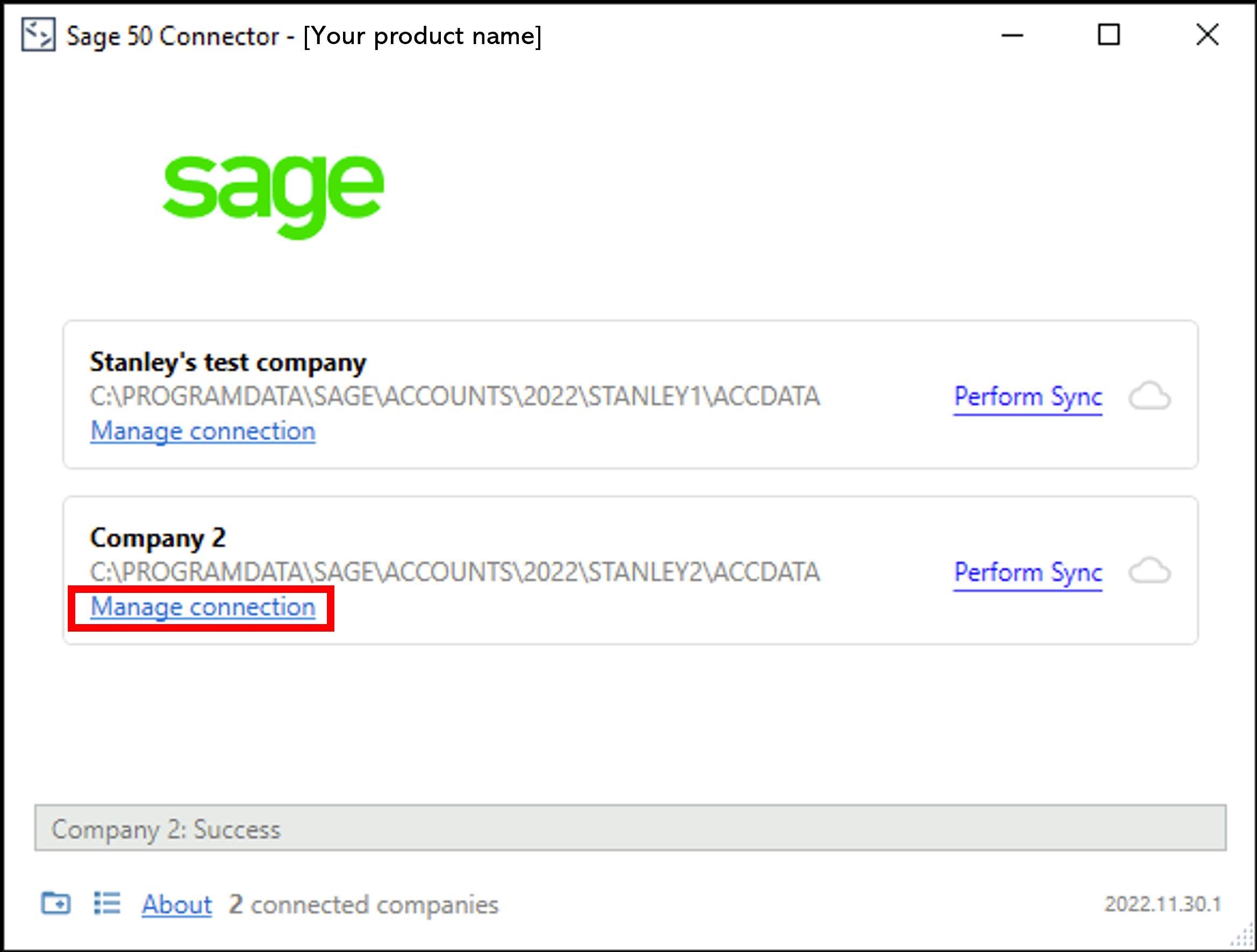
Open the Sage 50 Accounts Connector from the tray icon (usually located in the bottom-right toolbar on a computer running Windows). Do this by right-clicking the connector icon and selecting Open Sage 50 Accounts Connector.

-
Click Manage connectionConnection A link between a Codat company and a data source (like an accounting platform). Each connection represents authorized access to pull or push data from that platform. for the relevant companyCompany In Codat, a company represents your customer's business entity. Companies can have multiple connections to different data sources. data file
-
Edit the credentials so that the Username and Password saved are those of the user created exclusively for the connector, and not the credentials of any user that logs on to the Sage 50 Accounts application on a regular basis.
FAQs on writing data to Sage 50
What does the end user see when data is being written and Sage 50 Accounts is open?
-
If Sage 50 Accounts is open during a write operation, then the user may momentarily see a processing dialog. This will remain on the user's screen for a longer period of time if the volume of data being written is larger.
-
If suppliers are being written and the user is logged into Sage 50, then the supplier will not appear in Sage 50 Accounts until the page is refreshed.
Refreshing Sage 50 Accounts to see written suppliersTo refresh the page in Sage 50, you can click the filter in the Suppliers view twice as below. If a supplier has been successfully created, the account will appear when the page is refreshed.

Sage 50 Accounts is closed and the connector is writing data. When I open Sage, can I log in with the same credentials?
The write operation completes as normal and the user can still log into Sage 50 Accounts but subsequent write operations will not succeed because the same credentials are being used. Therefore a second user should always be created.
Subsequent write operations will succeed once 1) the Sage 50 Accounts application is closed, or 2) new user credentials are entered in the connector, or 3) the user logs into Sage 50 Accounts with credentials different to those currently entered into the connector and used to linkLink The authorization flow that allows end users to connect their accounting, banking, or commerce platforms to your application via Codat..
How are foreign currencies handled?
You may experience unexpected behavior if the Sage 50 Accounts application does not have Foreign Trader enabled and data is written that includes a currency that does not equal the companyCompany In Codat, a company represents your customer's business entity. Companies can have multiple connections to different data sources.'s base currency.
For example, if a companyCompany In Codat, a company represents your customer's business entity. Companies can have multiple connections to different data sources.'s base currency is GBP and a bill is written to Sage 50 Accounts via the Codat APIAPI A set of rules and protocols that allows different software applications to communicate with each other. Codat provides APIs for accessing financial data from accounting, banking, and commerce platforms. with a currency of USD, then no payments will be able to be made against this bill (as the companyCompany In Codat, a company represents your customer's business entity. Companies can have multiple connections to different data sources. accounts are all in GBP) until Foreign Trader is enabled.